Deploy Agent to WhatsApp
Learn how to connect your AI agent to WhatsApp Business so customers can interact with your agent directly through WhatsApp.
What is WhatsApp Deployment?
WhatsApp deployment allows your AI agent to respond to messages sent to your WhatsApp Business number. Customers can chat with your agent using the app they already use daily.
Benefits:
- Reach customers where they are
- High engagement rates
- Instant notifications
- Rich media support (images, documents)
- Global reach
- Verified business profile
Prerequisites
Before deploying to WhatsApp, you'll need:
- ✓ A WhatsApp Business Account
- ✓ A verified business phone number
- ✓ Your agent created and tested in AgentsGT
- ✓ Active AgentsGT subscription that includes WhatsApp integration
- ✓ Access to WhatsApp Business API (or we'll help you set it up)
Understanding WhatsApp Business Options
WhatsApp Business App vs. API
WhatsApp Business App:
- Free mobile app
- For small businesses
- Manual responses only
- Limited automation
- ❌ Not compatible with AgentsGT
WhatsApp Business API:
- For medium to large businesses
- Full automation support
- Multiple users
- ✅ Required for AgentsGT integration
Setting Up WhatsApp Integration
To connect your agent to WhatsApp, you'll need a WhatsApp Business API account. If you don't have one yet, you can get it from Meta Business.
Step 1: Go to Integrations
- Open your agent in AgentsGT
- Click on the "Integrations" section
- Find and click "WhatsApp"
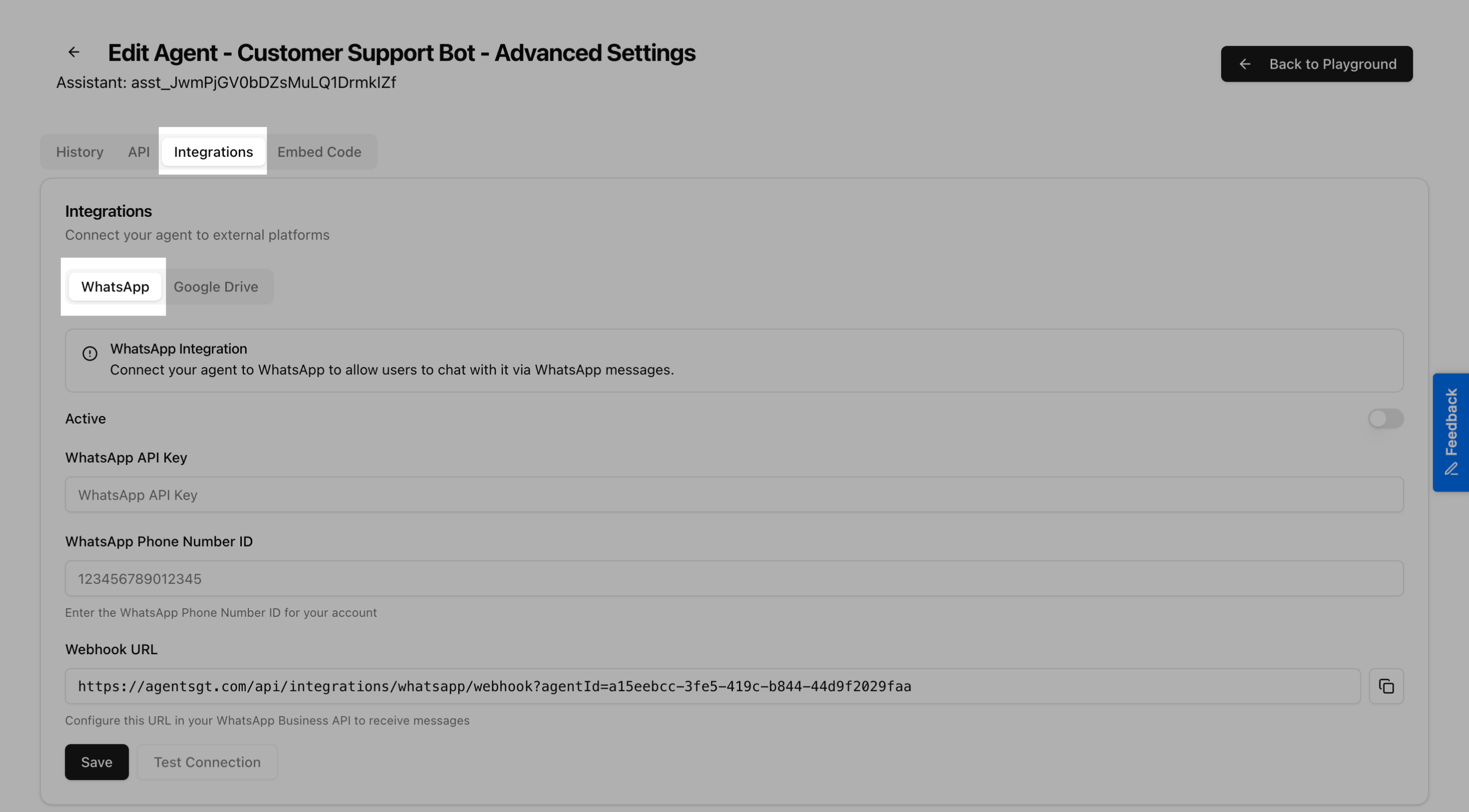
You'll see the WhatsApp integration form.
Step 2: Get Your WhatsApp API Credentials
Before filling out the form, you need to get your credentials from Meta Business Manager:
- Go to Meta Business Manager
- Navigate to WhatsApp → API Setup
- You'll find your credentials there
Step 3: Fill in the Integration Form
In AgentsGT, you need to provide three things:
WhatsApp API Key
Paste your Access Token from Meta Business Manager.
WhatsApp Phone Number ID
Enter your Phone Number ID from Meta Business Manager (it looks like a long number: 1234567890012345).
Webhook URL
AgentsGT automatically generates a Webhook URL for you. You'll need to copy this and add it to your Meta Business Manager.
Step 4: Configure Webhook in Meta Business Manager
Now go back to Meta Business Manager:
- In the WhatsApp API Setup page, find the Webhooks section
- Click "Configure Webhooks" or "Edit"
- Paste the Webhook URL you copied from AgentsGT
- Subscribe to messages events
- Click "Verify and Save"
Step 5: Activate the Integration
Back in AgentsGT, toggle the "Active" switch to ON.
Click "Save" to save your settings.

Testing Your WhatsApp Integration
Send a Test Message
Once everything is set up, it's time to test!
- Save your WhatsApp phone number in your contacts
- Open WhatsApp on your phone
- Send a message to your business number
- Wait for your agent to respond
What to test:
- Send a simple question
- Check if the agent responds
- Try different types of questions
- Make sure the conversation flows naturally
Check in AgentsGT
You can also check if messages are coming through:
- Go to your agent in AgentsGT
- Check the Chat History or Conversations section
- You should see the WhatsApp messages there
Common Issues and Solutions
Messages Not Going Through?
If your agent isn't responding on WhatsApp:
- Check the Active toggle - Make sure it's turned ON in AgentsGT
- Verify your credentials - Double-check your API Key and Phone Number ID
- Check the webhook - Make sure the webhook is configured correctly in Meta Business Manager
- Test in Meta Business Manager - Send a test message from their tools first
- Check your credits - Make sure you have credits available in AgentsGT
Webhook Not Verifying?
If Meta Business Manager can't verify your webhook:
- Copy the exact URL - Make sure you copied the complete webhook URL from AgentsGT
- Check permissions - Ensure you subscribed to "messages" events
- Wait a moment - Sometimes it takes a few seconds to verify
Need to Disconnect WhatsApp?
To remove the WhatsApp integration:
- Go back to Integrations → WhatsApp
- Toggle Active to OFF
- Click Save
Important Things to Know
WhatsApp Business Profile
Make sure your WhatsApp Business profile is complete in Meta Business Manager:
- Add your business name and description
- Upload a professional profile picture
- Fill in your business hours
- Add your website and email
A complete profile builds trust with your customers!
Message Quality
WhatsApp monitors the quality of business accounts. To maintain good standing:
- Respond quickly - Users expect fast replies
- Be helpful - Provide accurate information
- Don't spam - Only message users who have contacted you first
- Stay relevant - Keep conversations on topic
Best Practices
For better conversations:
- Use a friendly, conversational tone
- Keep messages short and clear
- Break up long information into multiple messages
- Make sure your agent's system prompt is well-written
Monitor your agent:
- Check conversations regularly in AgentsGT
- Update your agent's knowledge based on common questions
- Refine the system prompt if responses aren't quite right
What's Next?
Congratulations! Your AI agent is now live on WhatsApp. 🎉
You can now:
- Deploy to Web - Add your agent to your website too
- Widget Integration - Learn advanced integration for developers
- API Reference - Connect your agent to other systems
Need help? If something isn't working, contact support and include:
- Your WhatsApp Phone Number ID
- What's not working
- Screenshots if possible